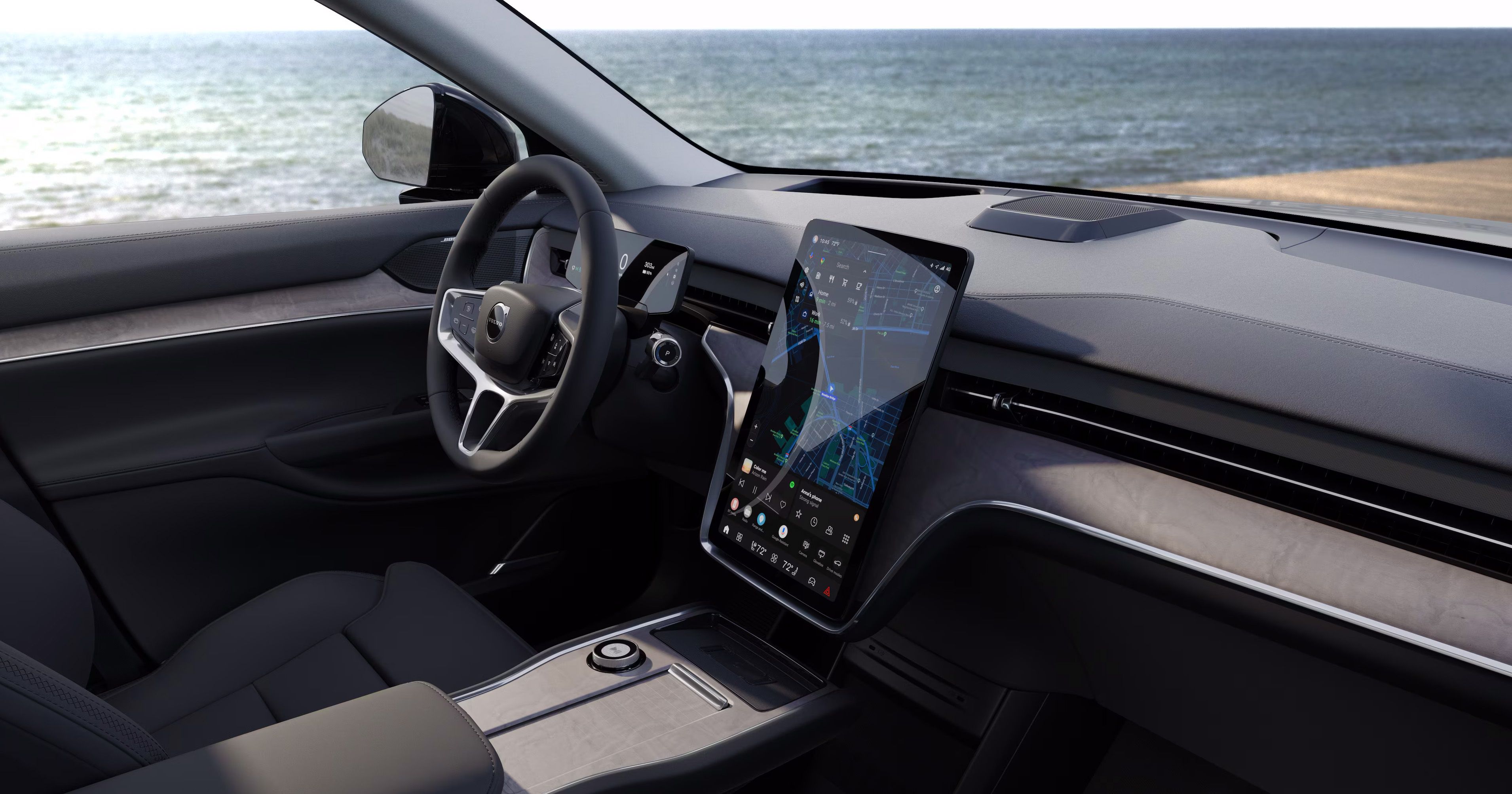
Update (May 2026): Volvo has shipped substantial software improvements since this post was first written. The current EX90 software release is 2.1.26, alongside a 2026 model-year hardware refresh that moves the car to an 800V architecture and a more powerful core computer (MY2025 owners are eligible to get the upgraded computer installed at a service visit). Many of the reboots and resets below are no longer needed on current software — in particular, the UWB digital-key reset is reported to auto-run in 1.13.17 and later, and the central-computer and infotainment reboots are needed far less often. I’m leaving the procedures here for owners still on older firmware, and as a reference if something does go sideways. If your car is on a recent build, try a normal “park, exit, walk away, come back” cycle before reaching for any of these.
The 2025 Volvo EX90 is a brand new platform, and like any new platform, there are some issues. I’ve collected all of the ways that various systems can be rebooted or reset. When something goes wrong—infotainment glitches, key errors, faults, or connectivity problems—a reset or reboot often solves it. Below is a list of everything I’ve learned so far. This version of the cheat sheet covers software versions 1.2.15 through 2.1.26.
Download the print-ready cheat sheet: The Volvo EX90 Cheat Sheet — 1.2.15–2.1.26 (PDF). It’s optimized to print on a single page.
Reboot Central Computer
Fixes most faults including Charging Faults, Pilot Assist Faults, driver-display errors and most other things.
- Park the vehicle and keep it on (Ready mode) — no charger connected.
- Press and hold the brake pedal — keep holding until the last step.
- At the same time, press and hold both:
- – Minus button — left side of the steering wheel
- Vol ▲ Volume Up — right side of the steering wheel
- Keep holding until you see “System Communication Error / Fault” on the instrument panel (10–20 seconds).
- Now press and hold the PARK button (end of the gear selector) for 2 seconds to complete the reset. There’s no immediate feedback (screens may dim slightly), but things reset after 30–60 seconds.
Restore Missing Google Maps & Assistant
Fixes Google Maps and Google Assistant disappearing — maps not working or Google not responding to voice commands because the apps are missing.
- Open Settings›System›Applications›Show all apps
- Scroll to Google Maps, tap it, then Enable it. Repeat for the Google Assistant app.
- Open both apps — everything should work again.
Fix Missing Speed-Limit Indicator
If the speed limit has stopped showing on the driver’s display, this brings it back.
- Open Settings›System›Applications›Show all apps
- Scroll to Google Maps, tap it, then Storage & cache.
- Tap Clear storage and Clear cache. You’ll likely have to re-login to Google Maps.
Reboot Displays / Infotainment
Fixes excessive screen lag, misbehaving apps, frozen screens and more.
- Make sure the car is parked and not charging.
- Press and hold the Play / Pause button until the screens go black (approx. 45 seconds).
- When the displays return, everything is back to normal in about a minute.
- If issues remain, reboot the Central Computer and try again.
Reset the Ultra-Wideband (UWB) Digital Key Module
Fixes most digital-key issues — can’t add digital keys, or your phone no longer unlocks the car.
- Unlock the car and exit — don’t lock it. Stand outside by the driver’s door.
- If you use your phone as a digital key, turn off Bluetooth or move your phone away from the car. Move any key tags away too.
- Tap your finger on the indent on the driver’s door handle and hold for 1 second, then lift your finger.
- Repeat the previous step four more times (5 taps total, one second each).
- The car won’t react at all — it feels useless and silly, but it works!
- Walk away and leave it untouched for 20 minutes. Don’t interact with the vehicle — no door handles, no Volvo app, and no key fobs nearby.
- When you come back, digital-key functionality should be working again.
Full Factory Reset (Erase All Data)
Last-resort option that can fix corrupt profiles and other issues.
- Tap the car icon at the bottom of the screen.
- Go to Settings›System›Reset options›Erase all data (factory reset)
- Follow the on-screen instructions.
Leaving People or Pets in the Car (Dog Mode)
If you (the driver) leave the car with people or pets inside and lock it, the internal motion sensors will trigger the alarm, and the climate turns off when you leave. Override both:
- Turn off motion sensors: Settings›Controls›scroll to Locking›turn on Occupant locking
- Keep climate active: tap the fan (bottom of screen)›Timers (top of screen)›Keep climate active
Some resets (like the factory reset) require being logged in as the vehicle’s owner.
There is a good Reddit thread on resetting things in the Volvo EX90.
If you learn of any other ways to reboot/reset, please comment below so I can keep this up to date.
Disclaimer: This information is provided for educational purposes only. The author assumes no responsibility for any damage, malfunction, or warranty voidance that may result from following these procedures. Use at your own risk. Let’s hope that the next software update makes this cheat sheet obsolete!